
Hide or show it
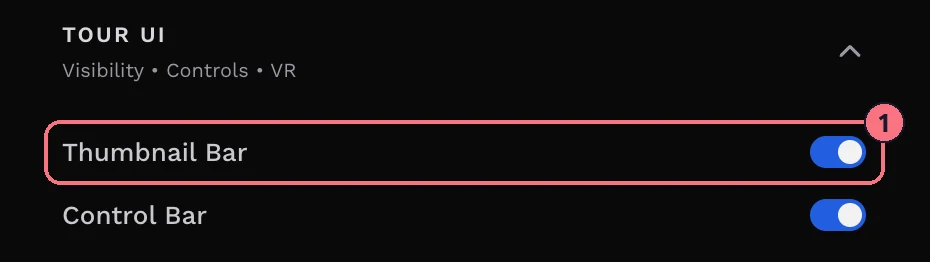
- In the editor, open the Tour tab and expand Tour UI.
- Turn Thumbnail Bar (1) off to hide it, or on to show it again. It saves straight away.
Using the Listing theme?
Tour Settings has a Theme (Legacy) menu with three choices: Walkthrough (the standard bar), Listing (thumbnails grouped by your panorama folders) and None. With Listing, the Thumbnail Bar switch isn’t shown: choose None here to hide the strip.
The two are linked: turning the switch off sets the theme to None, and turning it on sets it to Walkthrough.
Customise it instead
Want to keep the bar but change how it looks? Add the Thumbnail Bar block from + Add (see Blocks). A Customize button then appears next to the switch. Adding the block shows the bar again if it was hidden. Removing the block goes back to the standard bar; it doesn’t hide it.
Tips
- Hiding the bar? Check every room can still be reached through hotspots, the menu or a floor plan.
- To keep the thumbnails but hide their names, turn off Panorama Details, also in Tour UI.
Common questions
How do I hide the thumbnails at the bottom of a virtual tour?
Open the Tour tab in the editor, expand Tour UI and turn off Thumbnail Bar. The change saves straight away.
Why is there no Thumbnail Bar switch in Tour UI?
The tour uses the Listing theme. Set Theme (Legacy) in Tour Settings to None to hide the strip.
Can visitors still move between rooms without the thumbnail bar?
Yes, through hotspots, a menu or a floor plan. Check that every panorama can be reached one of those ways before you hide the bar.