
Save a block
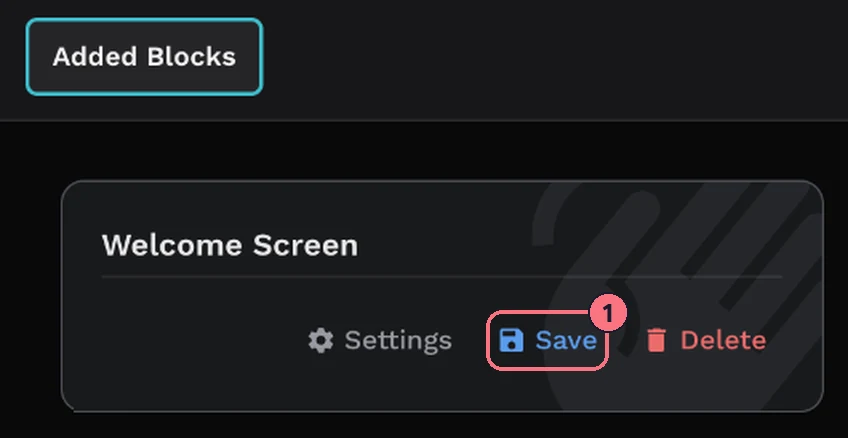
- In the editor, choose More at the top to see the tour’s Added Blocks.
- Point at the block you want to keep and choose Save (1).
- Give it a name you’ll recognise later, such as “Agency welcome screen”, and confirm. The editor shows “Saved in Global Blocks”.
Add a saved block to another tour
- Open the other tour in the editor and choose + Add.
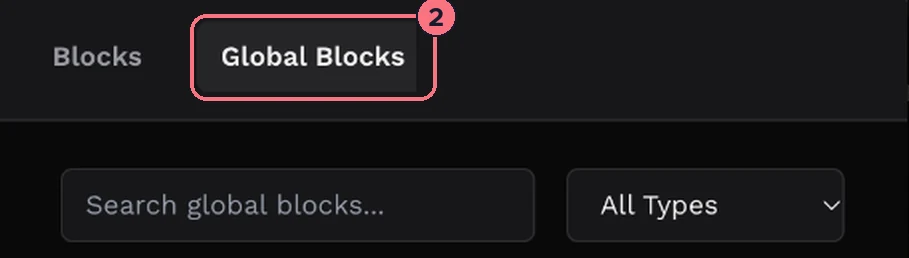
- Open the Global Blocks tab (2).
- Find the block: type part of its name in the search box, or pick a block type from All Types.
- Choose Add on its card. The block is added to this tour with the saved settings.
Which blocks can be saved
Control Bar, Thumbnail Bar, Menu, Magic Embed, Virtual Host, Welcome Screen, Password, Floorplan and Logo. Dollhouse and Map View are specific to one tour, so they can’t be saved.
Rename or delete a global block
On the Global Blocks tab, choose Edit on a block’s card to rename it, or Delete to remove it. The editor asks before deleting. Tours you already added the block to keep their copy.
Tips
- Save your house style once: a welcome screen with your logo and a menu with your contact links, then add them to every new tour.
Common questions
Can I copy a welcome screen to another tour?
Yes. Save the welcome screen as a global block from More, then open the other tour, choose + Add and add it from the Global Blocks tab.
If I change a block in one tour, do my other tours change too?
No. Adding a global block copies its saved settings into that tour, so each tour keeps its own copy. Edit on the Global Blocks tab only renames the saved block.
Which blocks can’t be saved as global blocks?
Dollhouse and Map View can’t be saved, because they’re specific to one tour.
What happens to my tours if I delete a global block?
Nothing. Tours you already added the block to keep their copy; deleting only removes it from the Global Blocks tab.