
Turn on the VR button
- In the editor, open the Tour tab and expand Tour UI.
- Turn on VR Mode Icon (1). The tour gets a VR button.
- For headsets, also turn on Enable Advanced VR (Beta) (2). See below for the difference.
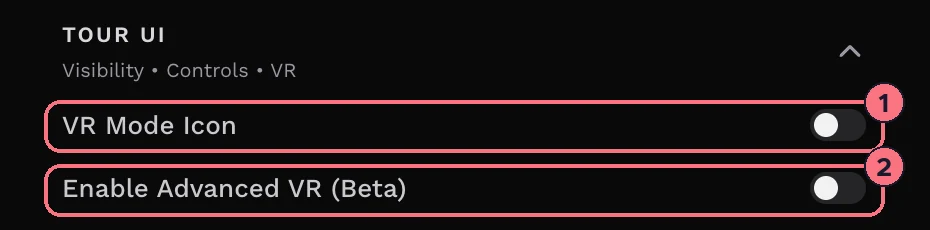
Each switch saves as you flip it. If your tour has a Control Bar, its VR item shows only while VR Mode Icon is on.
Standard VR or Advanced VR
- Standard VRWith Advanced VR off, the button turns the phone screen into two side-by-side views for a Cardboard-style viewer, full screen and in landscape. Visitors look around by moving their head, and follow a hotspot by holding the dot in the centre on it for 2 seconds. Leaving full screen ends VR.
- Advanced VRWith it on, the button opens the tour’s VR page in a new tab. It uses WebXR, the browser standard for VR headsets such as Meta Quest, and starts in VR straight away on a phone. Visitors follow a hotspot by looking at it for 2 seconds.
Open the VR page directly
Add /vr to the end of a tour’s link to go straight to the VR page, whatever the switches say. It’s the best link to open in a headset’s browser:
/virtualtour/abcd1234/vr
To start in a particular room, put it after the panorama number, as in /virtualtour/abcd1234/3/vr.
What works in VR
The VR page shows panoramas and the hotspots that make sense with a headset on: links to other panoramas, images, audio and Smart Bubble text. Other hotspots, such as web links, PDFs and embedded pages, don’t appear, and nor do your tour’s blocks.
Tips
- Every plan includes VR, including the free trial.
- Embedded tours work too. The embed code already lets the tour use VR on your website.
- The VR button doesn’t show on MLS links.
- Try it on the device your visitors will use before you promote the VR version. Headset browsers differ.
Common questions
Can I view a virtual tour on Meta Quest?
Yes. Open the tour’s link with /vr on the end in the headset’s web browser. The VR page uses WebXR, the browser standard for VR headsets such as Meta Quest.
Do visitors need an app to see a tour in VR?
No. VR works in the web browser: on a phone, the VR button splits the screen for a Cardboard-style viewer, and on a headset the VR page opens in its browser.
Which plans include VR?
Every TeliportMe plan includes VR, including the free trial.
Do hotspots work in VR?
Some do. On the VR page, links to other panoramas, images, audio and Smart Bubble text work; web links, PDFs, embedded pages and the tour’s blocks don’t appear.